Three new looks for your Website Coach
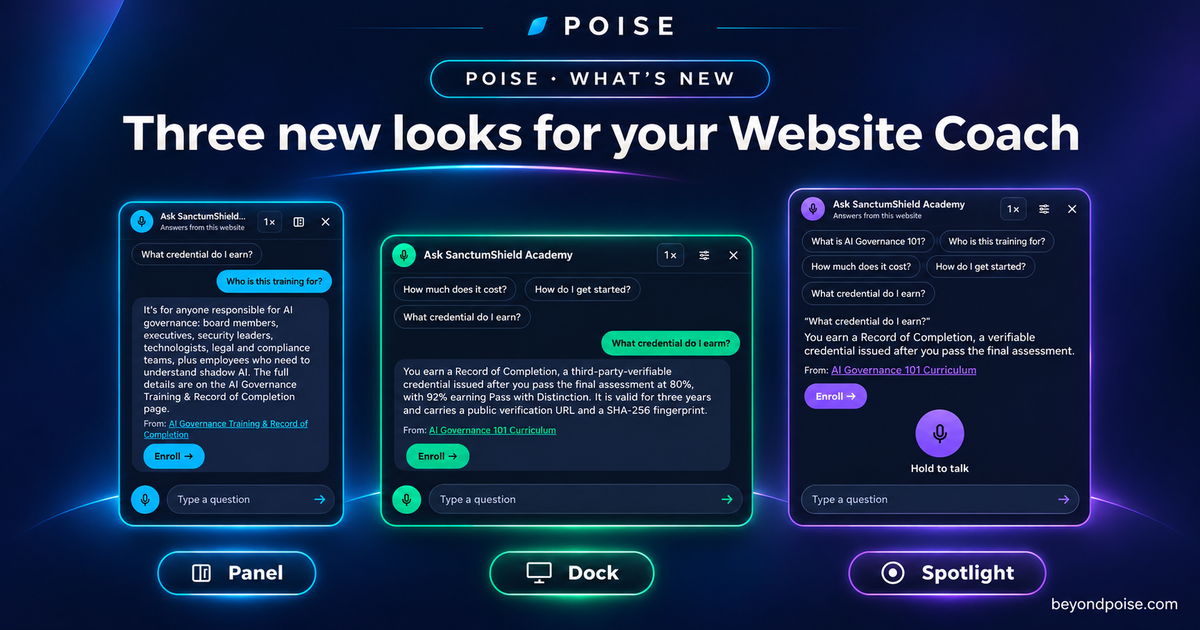
The Poise Website Coach is a voice and chat agent for your website. You enter your website address, the coach reads your pages, and it answers your visitors by voice or text from what your site says, with a link to the page each answer came from.
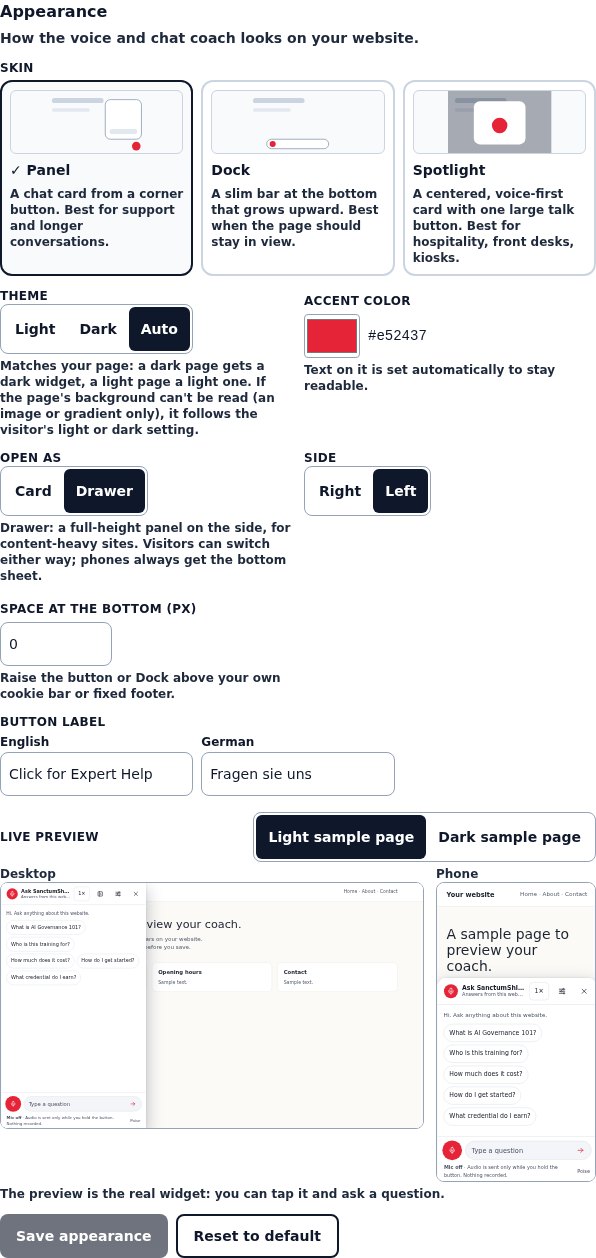
It now comes in three looks, and you choose the one that suits your site.
Panel
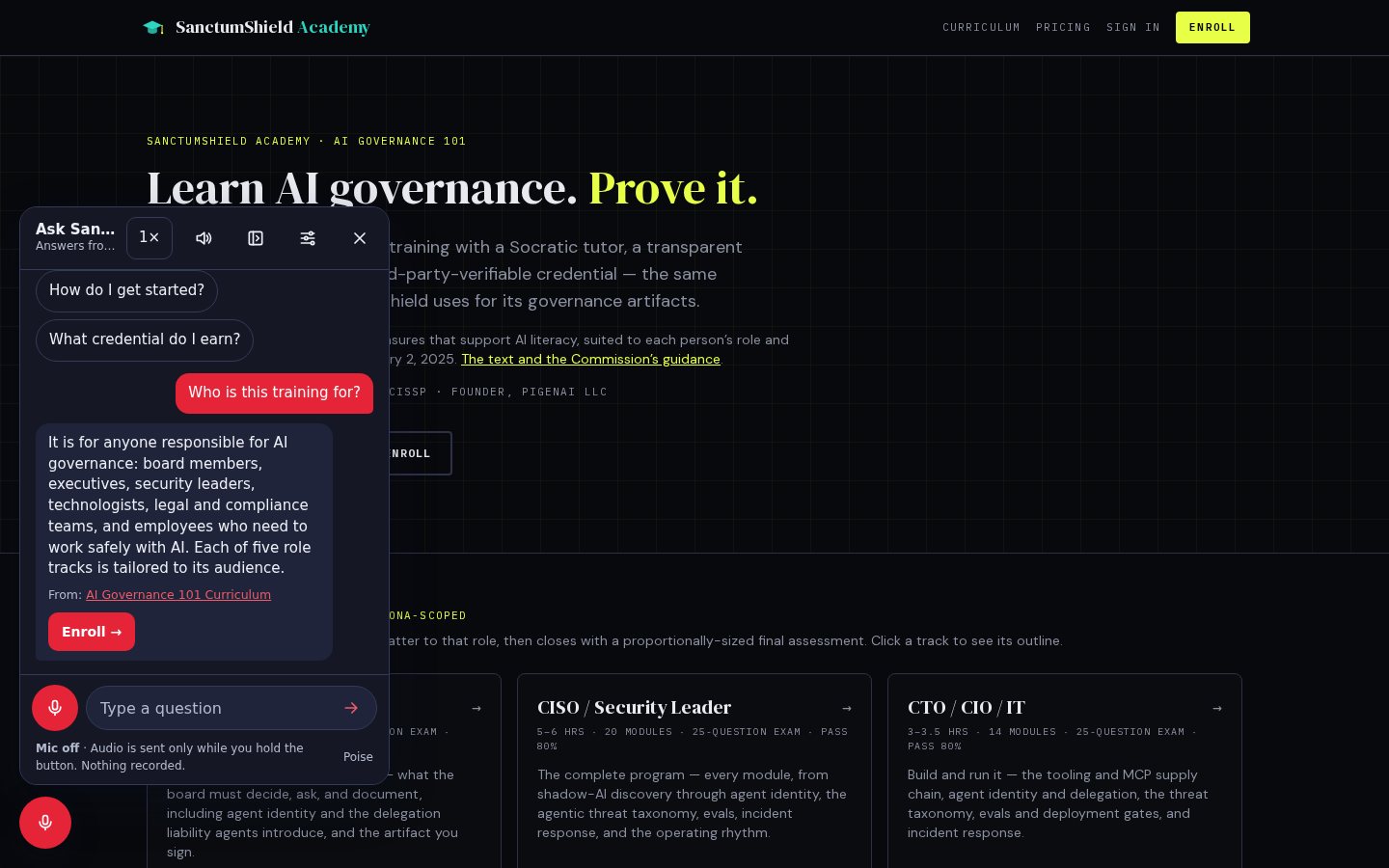
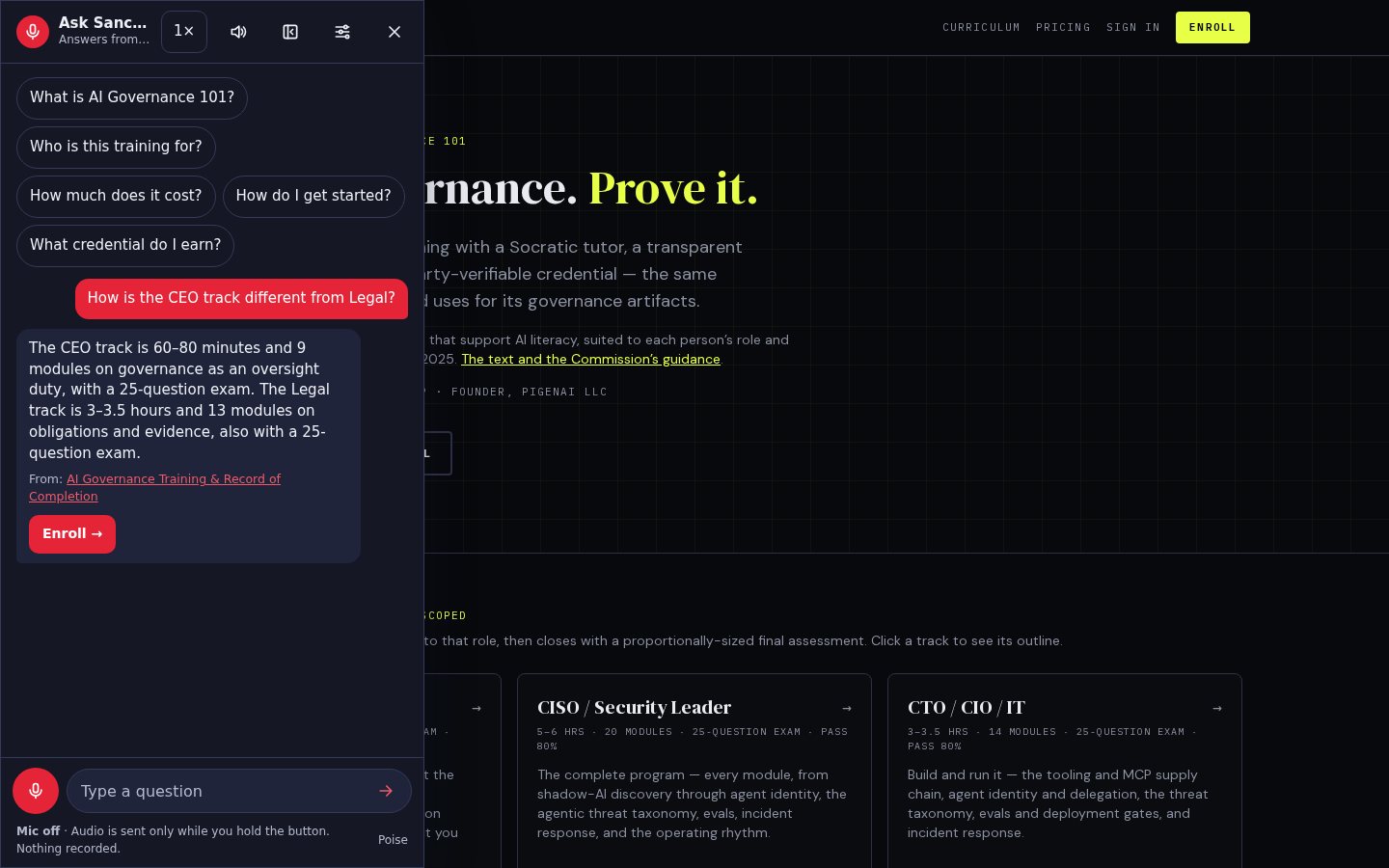
A button in the corner opens a chat card with suggested questions, the conversation, and a talk button beside a text field. It suits support and longer conversations. Panel can also open as a full-height drawer at the side of the page, for visitors who ask several questions in a row.
Dock
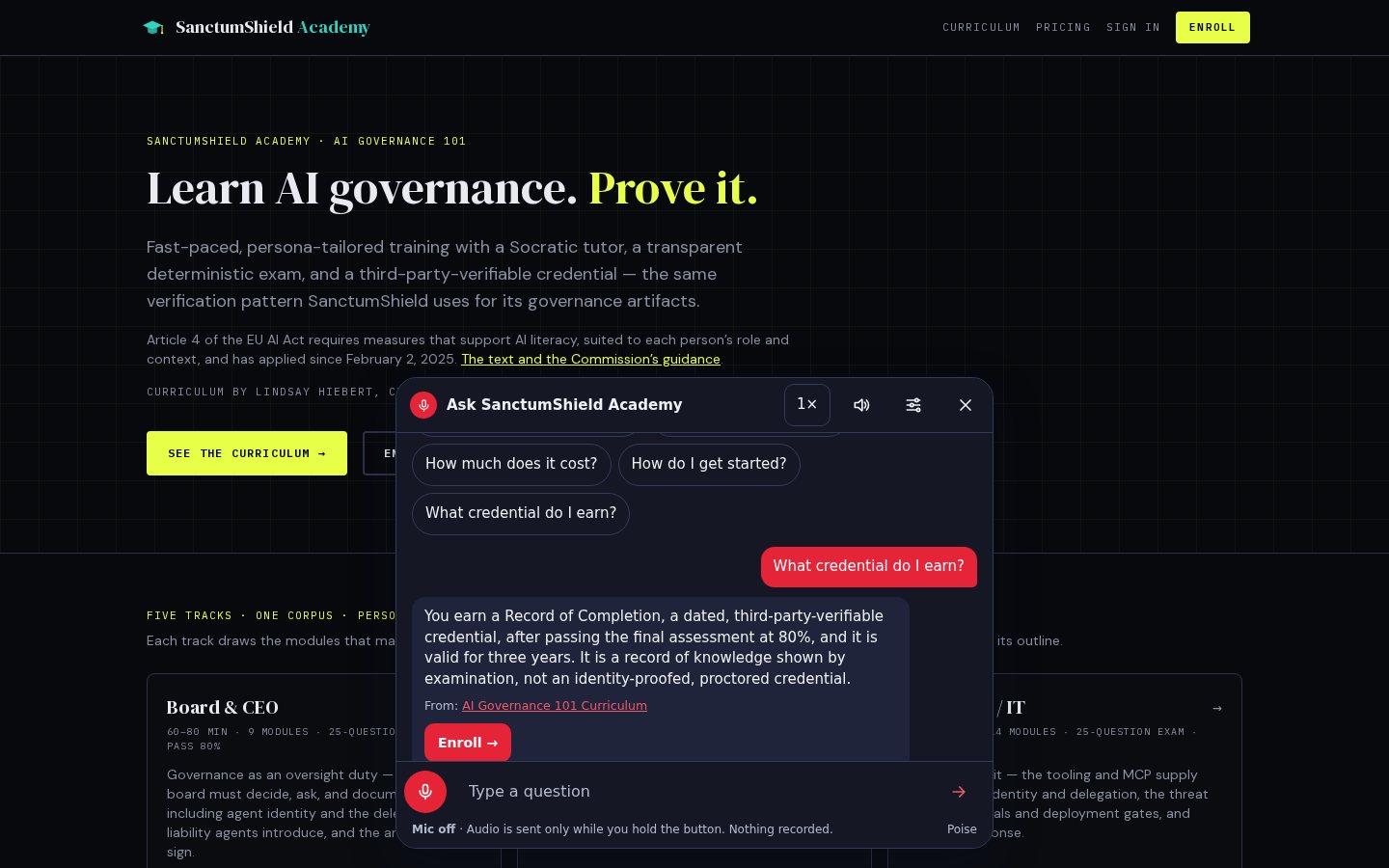
A slim bar at the bottom of the page that grows upward only when someone uses it. It suits content and product pages, where the page itself should stay in view.
Spotlight
A centered card with one large talk button and the answer in large type. It suits voice-first settings such as hospitality, front desks and kiosks.
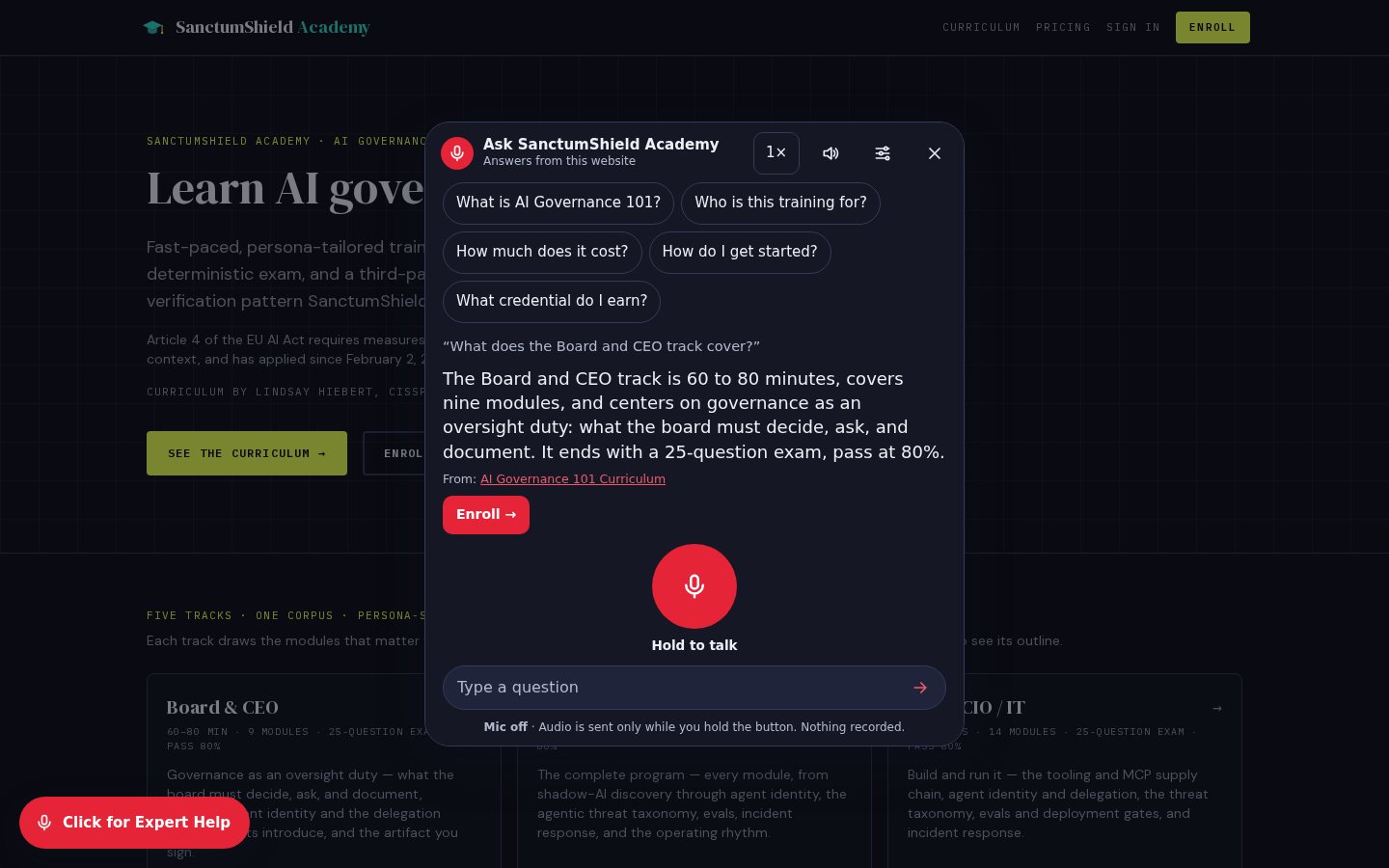
Make it yours
Choose light, dark or automatic, set your accent color, pick the side of the page, and write your own button label. A live preview shows the real coach on a desktop and a phone as you change each setting. When you save, your website shows the new look within a few minutes. There is nothing to reinstall.
Small things that help visitors
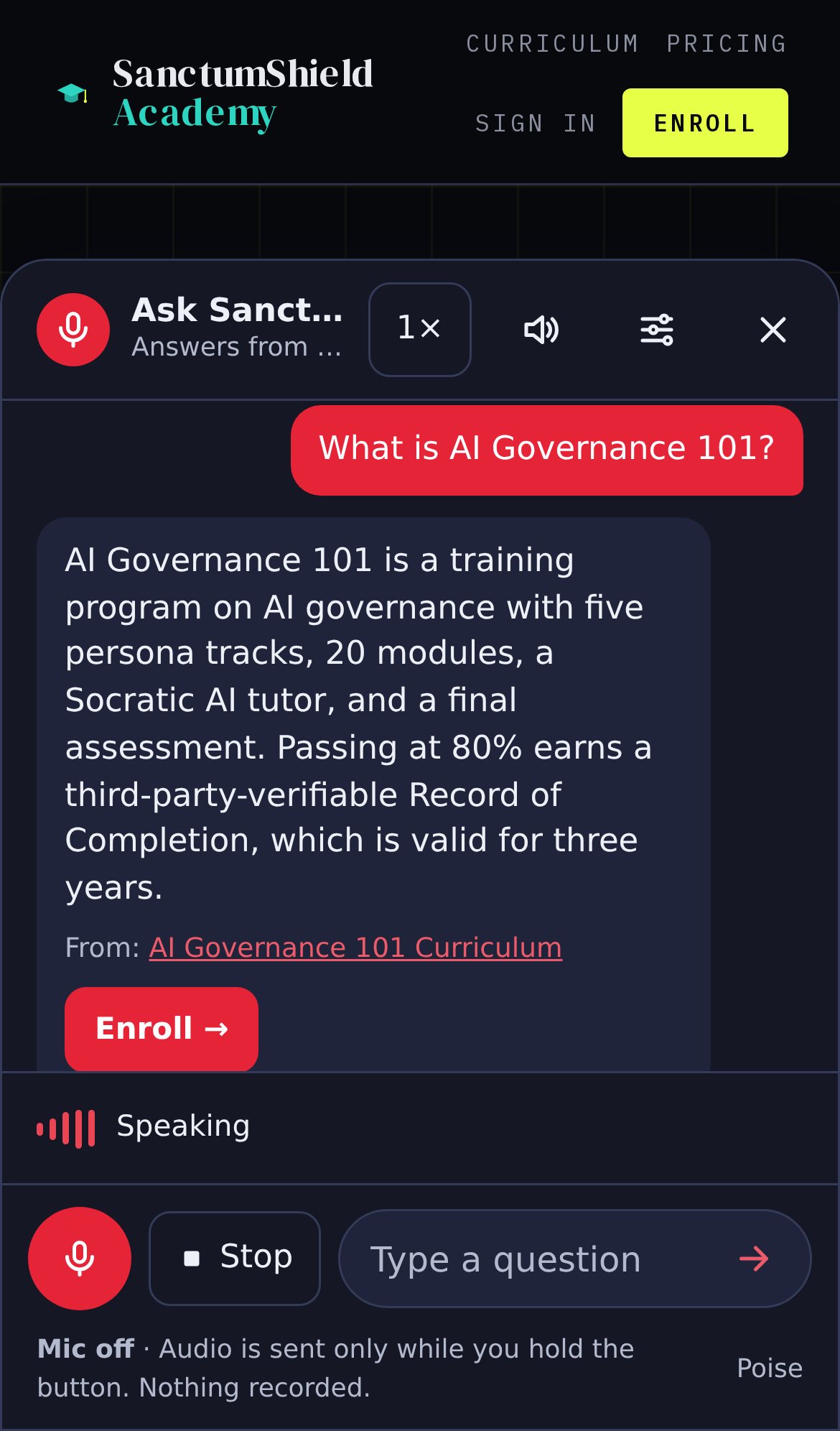
A speed badge changes playback speed with one tap. A page can set its own starting language, so a German page can open in German. Language, speed and voice or text mode sit behind one settings button, so the conversation comes first. A speaker button beside the speed badge turns the voice on or off, and a Stop button beside the talk button silences the current answer while its text stays on screen.
What has not changed
The coach answers only from your website. Audio is sent only while the visitor holds the talk button, and nothing is recorded. Your existing embed code keeps working exactly as it is.
How to change your look
Sign in, open your store, scroll to Appearance, pick a skin, and save.